Install Walkthrough for TazUO: Difference between revisions
From IUO Tome of Knowledge
No edit summary |
No edit summary |
||
| Line 1: | Line 1: | ||
# Create a folder to contain everything related to Insane UO. | # Create a folder to contain everything related to Insane UO. | ||
#; Navigate to the location you want to create a new folder | #; Navigate to the location you want to create a new folder. For this guide, we will use the location <code>C:\InsaneUo</code>. You're welcome to choose another location. Installing on OneDrive is NOT recommended. | ||
#; Right click in an empty spot and choose New Folder | #; Right click in an empty spot and choose New Folder | ||
#; [[File:1-newfolder.png]] | #; [[File:1-newfolder.png]] | ||
| Line 12: | Line 12: | ||
#; Wait for the client to patch | #; Wait for the client to patch | ||
#; [[File:4-patchea.png]] | #; [[File:4-patchea.png]] | ||
# Once patching is complete, press "Play" | # Once patching is complete, press the "Play" button | ||
#; [[File:5-playea.png]] | #; [[File:5-playea.png]] | ||
# The "Ultima Online Classic Client" should now open. | # The "Ultima Online Classic Client" should now open. | ||
#; At the bottom center is a version number. Write this down or paste it in a text file. You will need it when configuring the launcher. When this was written, the version is <code>7.0.113.0</code>. | #; At the bottom center is a version number. Write this down or paste it in a text file. You will need it when configuring the launcher. When this was written, the version is <code>7.0.113.0</code>. | ||
#; [[File:6-versionea.png]] | #; [[File:6-versionea.png]] | ||
Revision as of 02:19, 15 December 2025
- Create a folder to contain everything related to Insane UO.
- Navigate to the location you want to create a new folder. For this guide, we will use the location
C:\InsaneUo. You're welcome to choose another location. Installing on OneDrive is NOT recommended. - Right click in an empty spot and choose New Folder
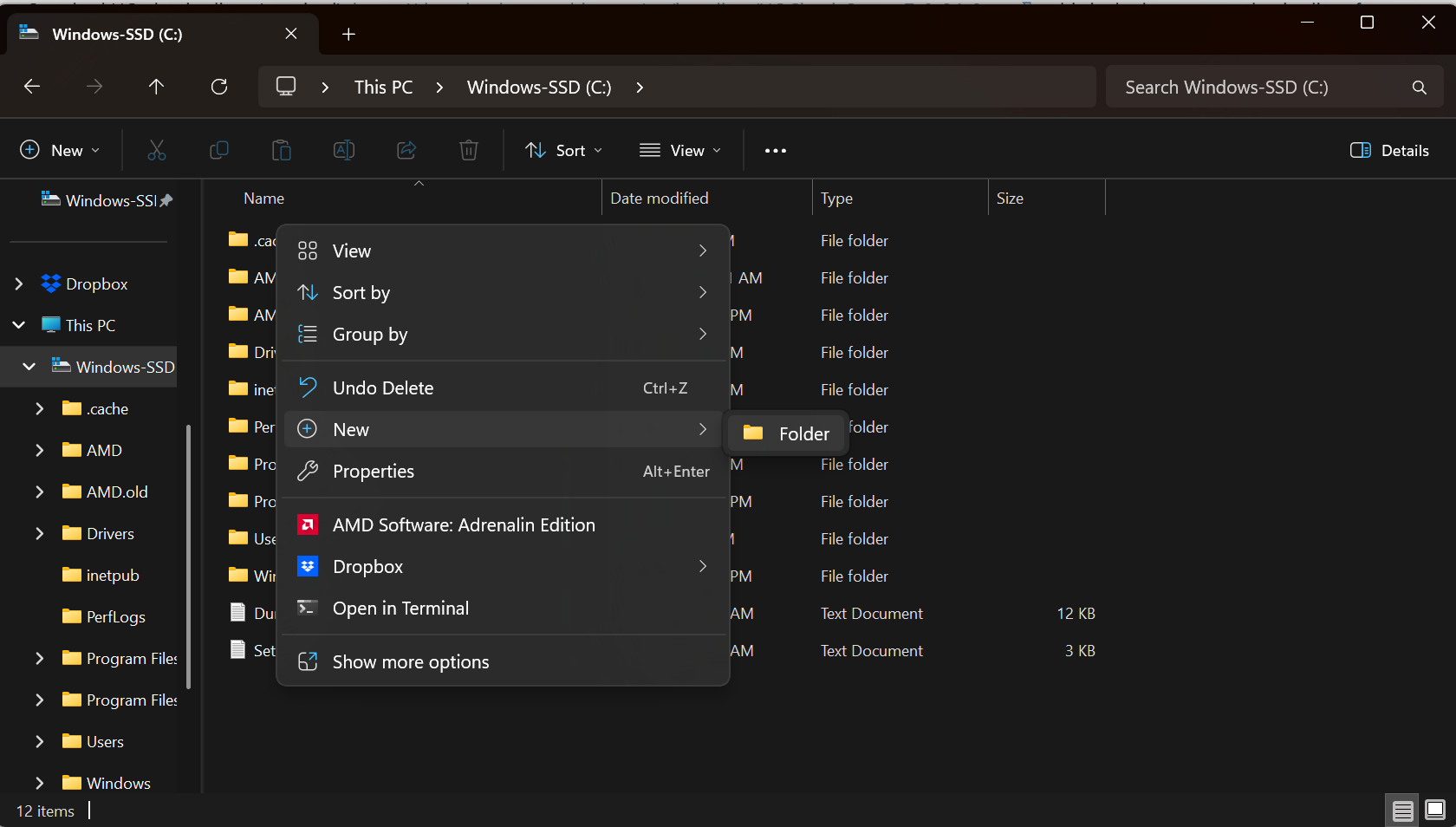
- Name the folder "InsaneUo"
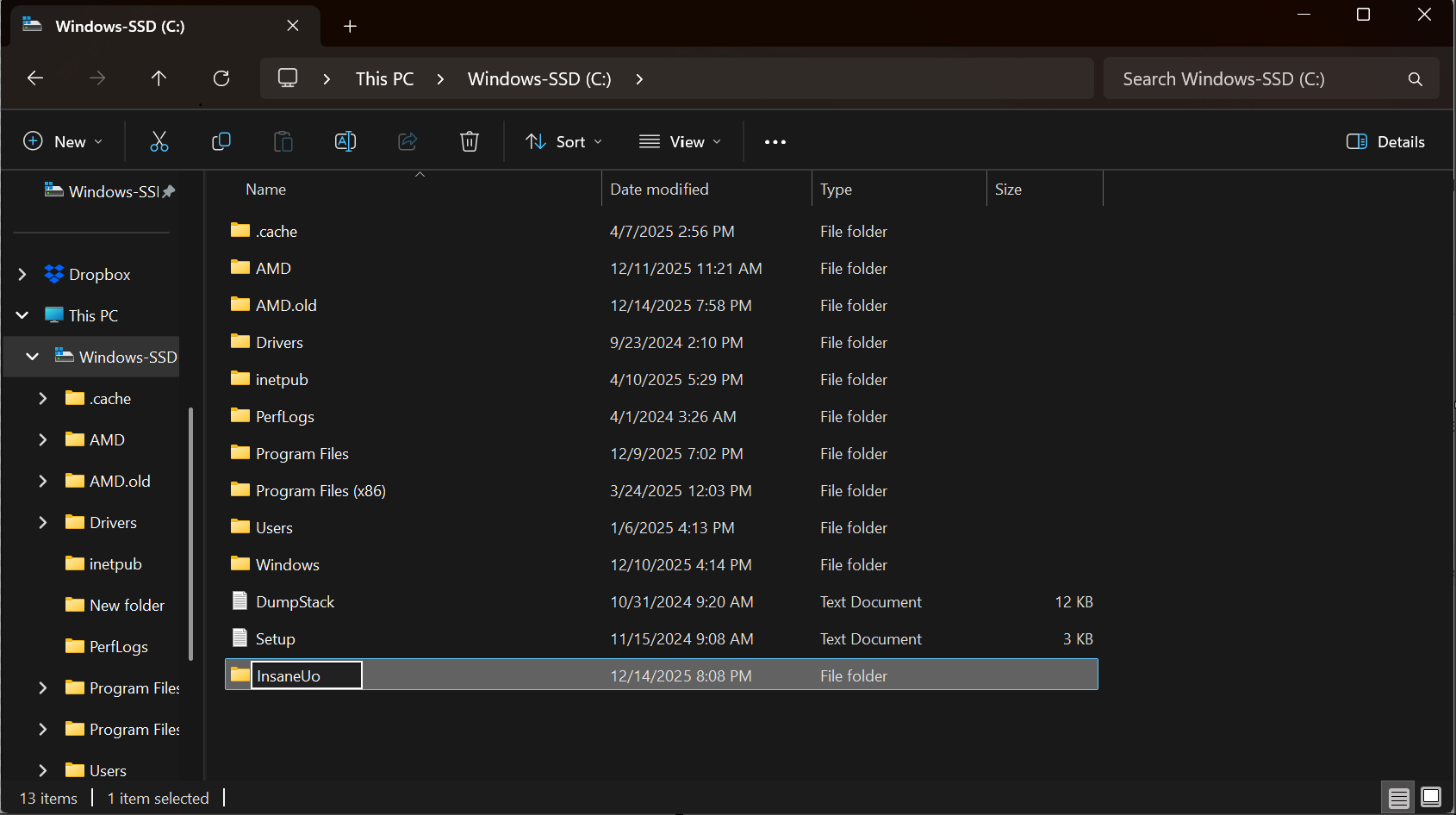
- Navigate to the location you want to create a new folder. For this guide, we will use the location
- Download the official client https://downloads.eamythic.com/uo/installers/UOClassicSetup_7_0_24_0.exe
- Open the download to begin installation
- Choose the location you created above,
C:\InsaneUo, for the Install Location and click Install 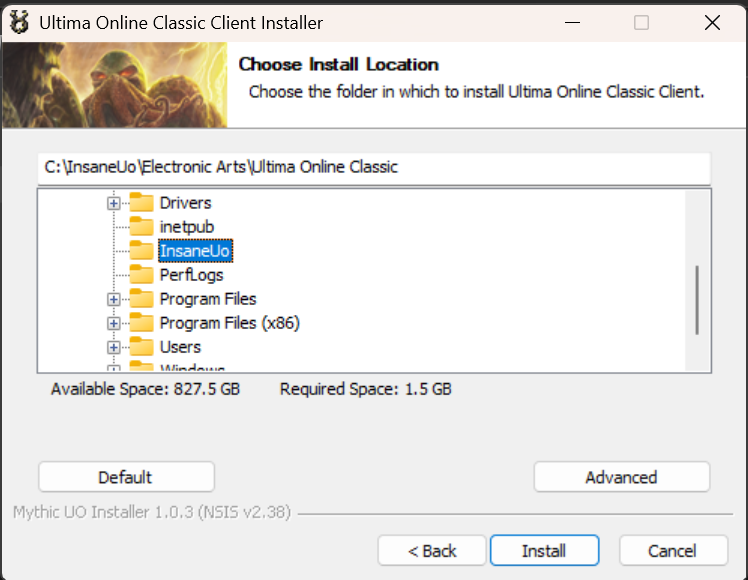
- Choose the location you created above,
- Once the install is complete, launch the "Ultima Online Classic Client" from the icon on your desktop, your start menu, or from
C:\InsaneUo\Electronic Arts\Ultima Online Classic\UO.exe- Wait for the client to patch
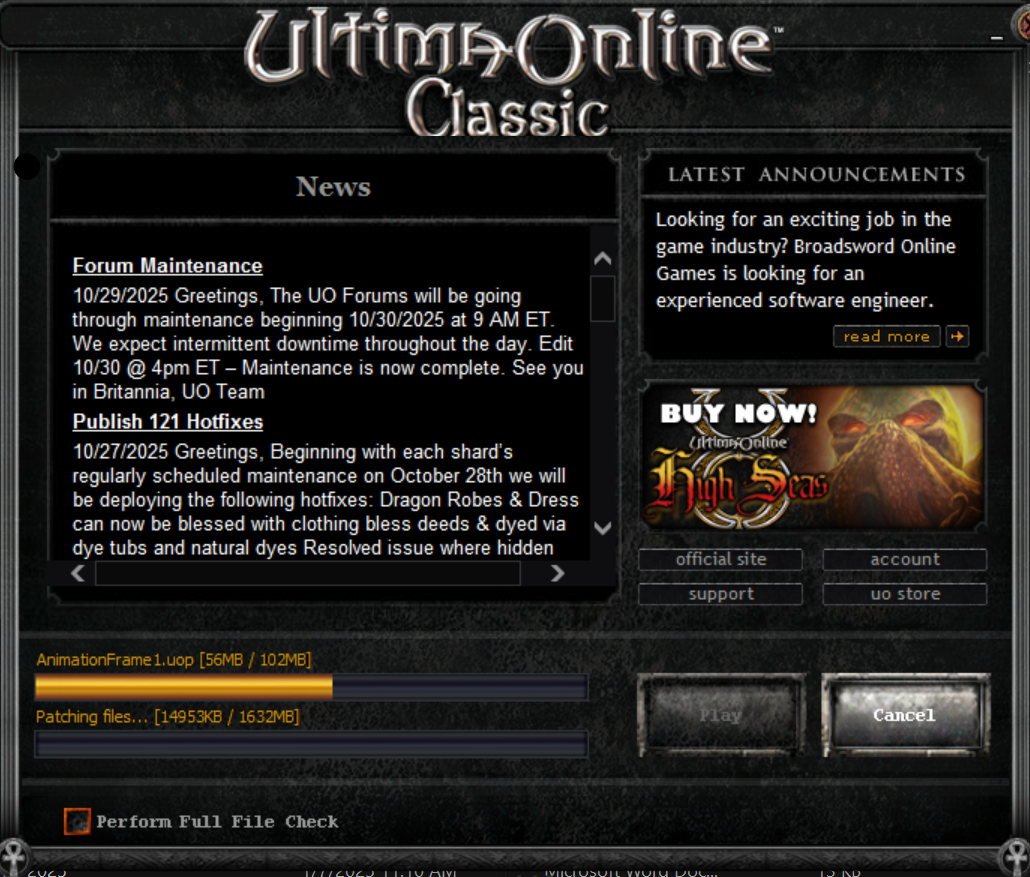
- Once patching is complete, press the "Play" button
- The "Ultima Online Classic Client" should now open.
- At the bottom center is a version number. Write this down or paste it in a text file. You will need it when configuring the launcher. When this was written, the version is
7.0.113.0. 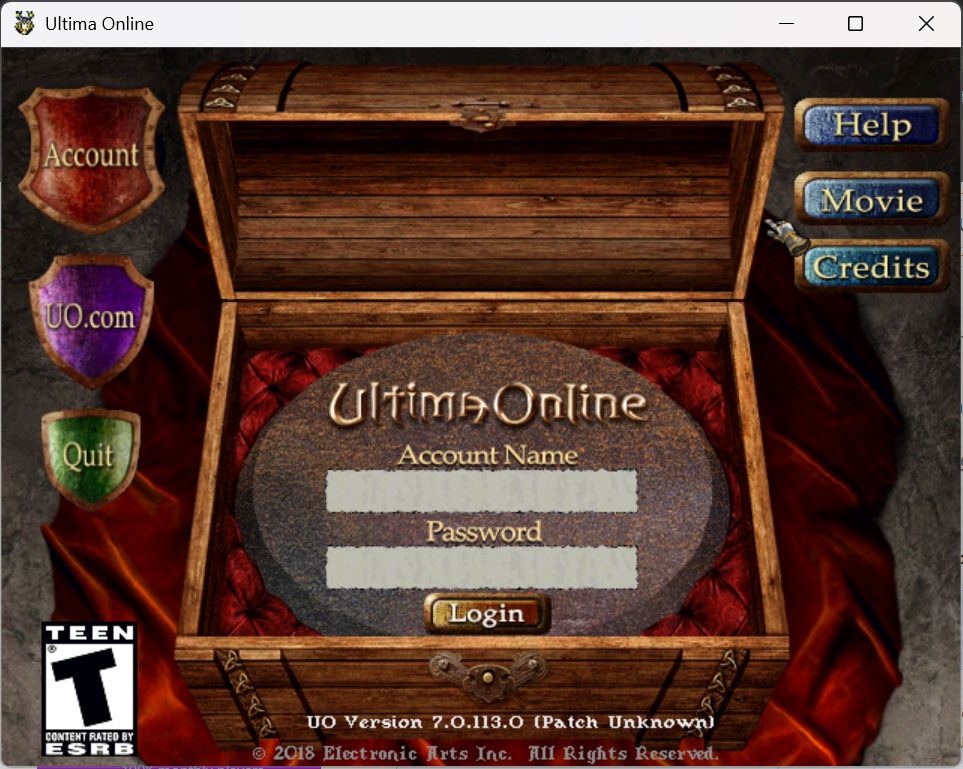
- At the bottom center is a version number. Write this down or paste it in a text file. You will need it when configuring the launcher. When this was written, the version is


