Install Walkthrough for TazUO: Difference between revisions
From IUO Tome of Knowledge
Created page with "# Create a folder to contain everything related to Insane UO. #; Navigate to the location you want to create a new folder #; Right click in an empty spot and choose New Folder #; File:1-newfolder.png #; Name the folder "InsaneUo" #; File:2-insaneuofolder.png # Download the official client https://downloads.eamythic.com/uo/installers/UOClassicSetup_7_0_24_0.exe # Open the download to begin installation #; Choose the location you created above, <code>C:\InsaneUo</c..." |
No edit summary |
||
| (13 intermediate revisions by the same user not shown) | |||
| Line 1: | Line 1: | ||
__TOC__ | |||
== Installing the Official EA Client == | |||
# Create a folder to contain everything related to Insane UO. | # Create a folder to contain everything related to Insane UO. | ||
#; Navigate to the location you want to create a new folder | #; Navigate to the location you want to create a new folder. For this guide, we will use the location <code>C:\</code>. You're welcome to choose another location. Installing on OneDrive is NOT recommended though might work if you set the files to stay locally. | ||
#; Right click in an empty spot and choose New Folder | #; Right click in an empty spot and choose New Folder | ||
#; [[File:1-newfolder.png]] | #; [[File:1-newfolder.png]] | ||
#; Name the folder " | #; Name the folder "InsaneUO" | ||
#; [[File: | #; [[File:2b-insaneuofolder.png]] | ||
# Download the official client https://downloads.eamythic.com/uo/installers/UOClassicSetup_7_0_24_0.exe | # Download the official client https://downloads.eamythic.com/uo/installers/UOClassicSetup_7_0_24_0.exe | ||
# Open the download to begin installation | # Open the download to begin installation | ||
#; Choose the location you created above, <code>C:\ | #; Choose the location you created above, <code>C:\InsaneUO</code>, for the Install Location and click Install | ||
#; [[File: | #; [[File:3a-installea.png]] | ||
# | # Wait for the install to complete | ||
== Patching the Official EA Client == | |||
# Launch the "Ultima Online Classic Client" from the icon on your desktop, your start menu, or from <code>C:\InsaneUO\Electronic Arts\Ultima Online Classic\UO.exe</code> | |||
#; Wait for the client to patch | #; Wait for the client to patch | ||
#; [[File:4-patchea.png]] | #; [[File:4-patchea.png]] | ||
# Once patching is complete, press "Play" | # Once patching is complete, press the "Play" button | ||
#; [[File:5-playea.png]] | #; [[File:5-playea.png]] | ||
# The "Ultima Online Classic Client" should now open. | # The "Ultima Online Classic Client" should now open. | ||
#; At the bottom center is a version number. Write this down or paste it in a text file. You will need it when configuring the launcher. | #; At the bottom center is a version number. Write this down or paste it in a text file. You will need it when configuring the launcher. At the time of this writing, the version is <code>7.0.113.0</code>. | ||
#; [[File:6-versionea.png]] | #; [[File:6-versionea.png]] | ||
# Close the Official Client | |||
== Installing the TazUO Launcher and TazUOClient == | |||
# Create a folder to contain TazUO | |||
#; Navigate to the location that you want to store the TazUO files. For this guide, we will use the location <code>C:\InsaneUO</code>. | |||
#; Right click in an empty spot and choose New Folder | |||
#; [[File:1-taznewfolder.png]] | |||
#; Name the folder "TazUO" | |||
#; [[File:2-tazfolder.png]] | |||
# Download the TazUO launcher from https://github.com/PlayTazUO/TUO-Launcher/releases/tag/TazUO-Launcher | |||
#; This guide is focused on the Windows platform. At the time of this writing, the latest version of the TazUO Launcher is <code>2.6.7</code>. | |||
#; Download <code>TazUO-Launcher.win-x64.zip</code> | |||
#; [[File:3-downloadtazlauncher.png]] | |||
# Extract the files from the zip | |||
#; Right click the download and choose extract all | |||
#; Set the destination to <code>C:\InsaneUO\TazUO</code> | |||
#; [[File:4-extract.png]] | |||
# Unblock the Launcher | |||
#; Navigate to <code>C:\InsaneUO\TazUO</code> | |||
#; Right click <code>TazUO Launcher</code> application and choose properties | |||
#; [[File:5-tazuoproperties.png]] | |||
#; In the security section, check the "Unblock" checkbox. | |||
#; [[File:6-tazuounblock.png]] | |||
# Open the TazUO Launcher | |||
# Pick what channel of client you want. | |||
#; Legacy will work with assistants like Razor Enhanced and is recommended | |||
#; Main receives more updates but is not compatible with assists | |||
#; For more info, visit https://tazuo.org/introduction/modern-vs-legacy/ | |||
#; [[File:7-tazchannel.png]] | |||
# Click "Download now" and the Taz client will be downloaded | |||
== Create a profile in TazUO == | |||
# Open the TazUO Launcher | |||
# Click "Select a profile" and then "[ Edit Profiles ]" | |||
# Create a new profile | |||
#; Name the profile in a way that makes sense to you. "Account 1" for example | |||
#; If you are new to the shard, put in an username and password and the account will be automatically created. You can have up to 3 accounts on Insane UO! | |||
#; Using a password longer than 16 characters can cause issues. The EA Client does not support longer than 16 character passwords. | |||
#; Use the following for "Connection" section | |||
{{Server_connection_info}} | |||
#; Click "Locate" beside "UO Directory" and choose where you installed the Official EA client. For this guide, the location is <code>C:\InsaneUO\Electronic Arts\Ultima Online Classic</code> | |||
#; If the client version does not auto populate, input the client version for the Official EA client. For this guide, the version is <code>7.0.113.0</code> | |||
#; [[File:8-tazprofile.png]] | |||
# Click "Save" | |||
# Click the 'X' to close the window | |||
== Installing Razor Enhanced == | |||
# Create a folder to contain Razor | |||
#; Navigate to the location that you want to store the Razor files. For this guide, we will use the location <code>C:\InsaneUO</code>. | |||
#; Right click in an empty spot and choose New Folder | |||
#; [[File:1-razornew.png]] | |||
#; Name the folder "Razor" | |||
#; [[File:2-razorfolder.png]] | |||
# Download the latest Razor Enhanced from https://razorenhanced.net/ | |||
# Extract the files from the zip | |||
#; Right click the download and choose extract all | |||
#; Set the destination to <code>C:\InsaneUO\Razor</code> | |||
#; [[File:3-razorextract.png]] | |||
== Configuring TazUO to launch Razor == | |||
# Open the TazUO Launcher | |||
# Click the profile dropdwon and then "[ Edit Profiles ]" | |||
# Choose the profile you created above and then click on the "Plugins" tab | |||
#; [[File:1-tazplugin.png]] | |||
# Press "Add" and choose where you installed Razor Enhanced. For this guide, the location is <code>C:\InsaneUO\Razor\RazorEnhanced.exe</code> | |||
#; [[File:1-tazpluginsave.png]] | |||
# Click "Save" | |||
# Click the 'X' to close the window | |||
== Play! == | |||
# Open the TazUO Launcher | |||
# Pick the profile you want to play and click "Play" | |||
# Be sure to check out other articles to find out more about Insane UO. | |||
#; [[Quickstart_Guide|The Quickstart Guide has a lot of info!]] | |||
[[Category:Getting Started]] | |||
Latest revision as of 01:22, 28 December 2025
Installing the Official EA Client
- Create a folder to contain everything related to Insane UO.
- Navigate to the location you want to create a new folder. For this guide, we will use the location
C:\. You're welcome to choose another location. Installing on OneDrive is NOT recommended though might work if you set the files to stay locally. - Right click in an empty spot and choose New Folder
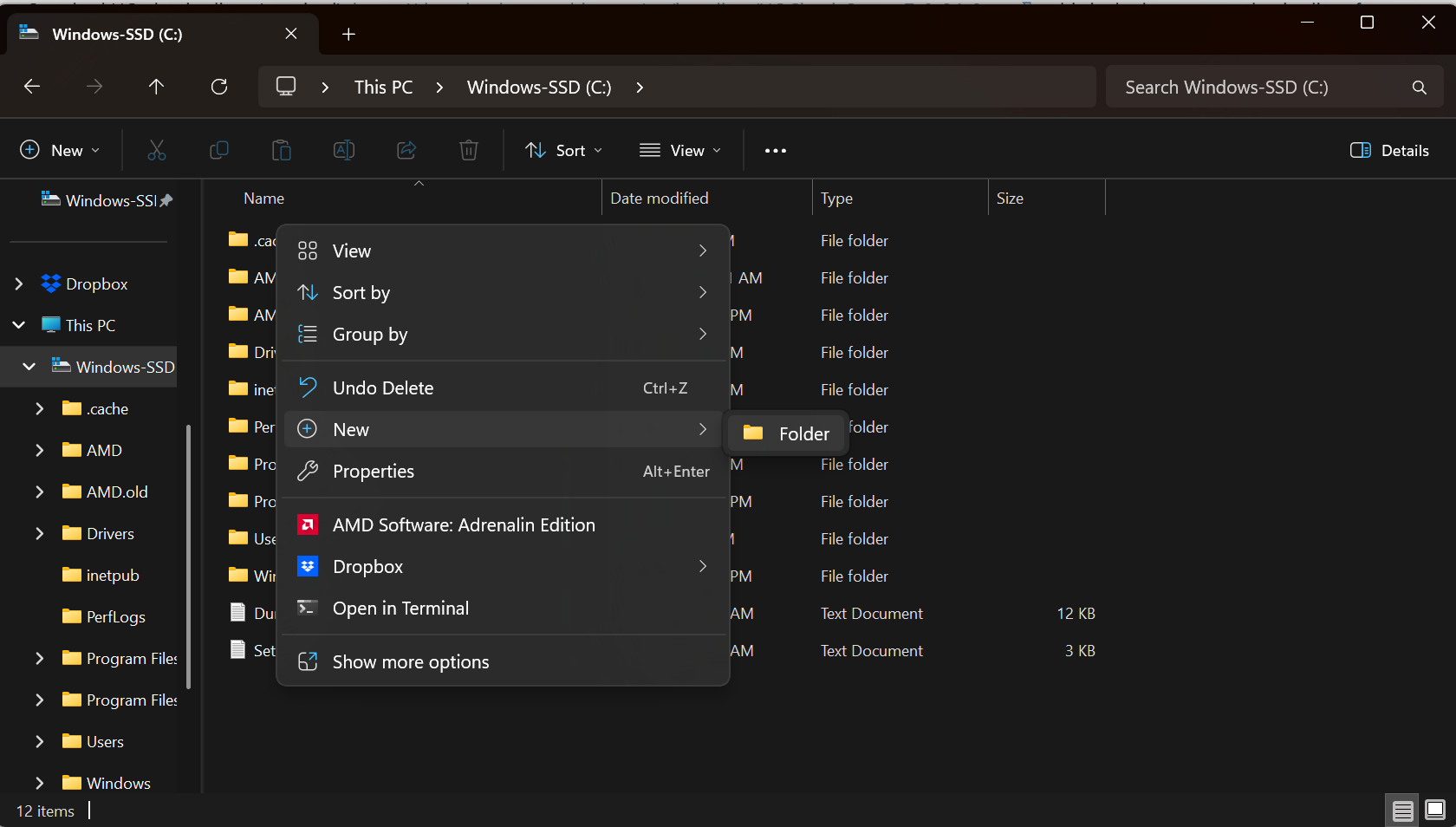
- Name the folder "InsaneUO"
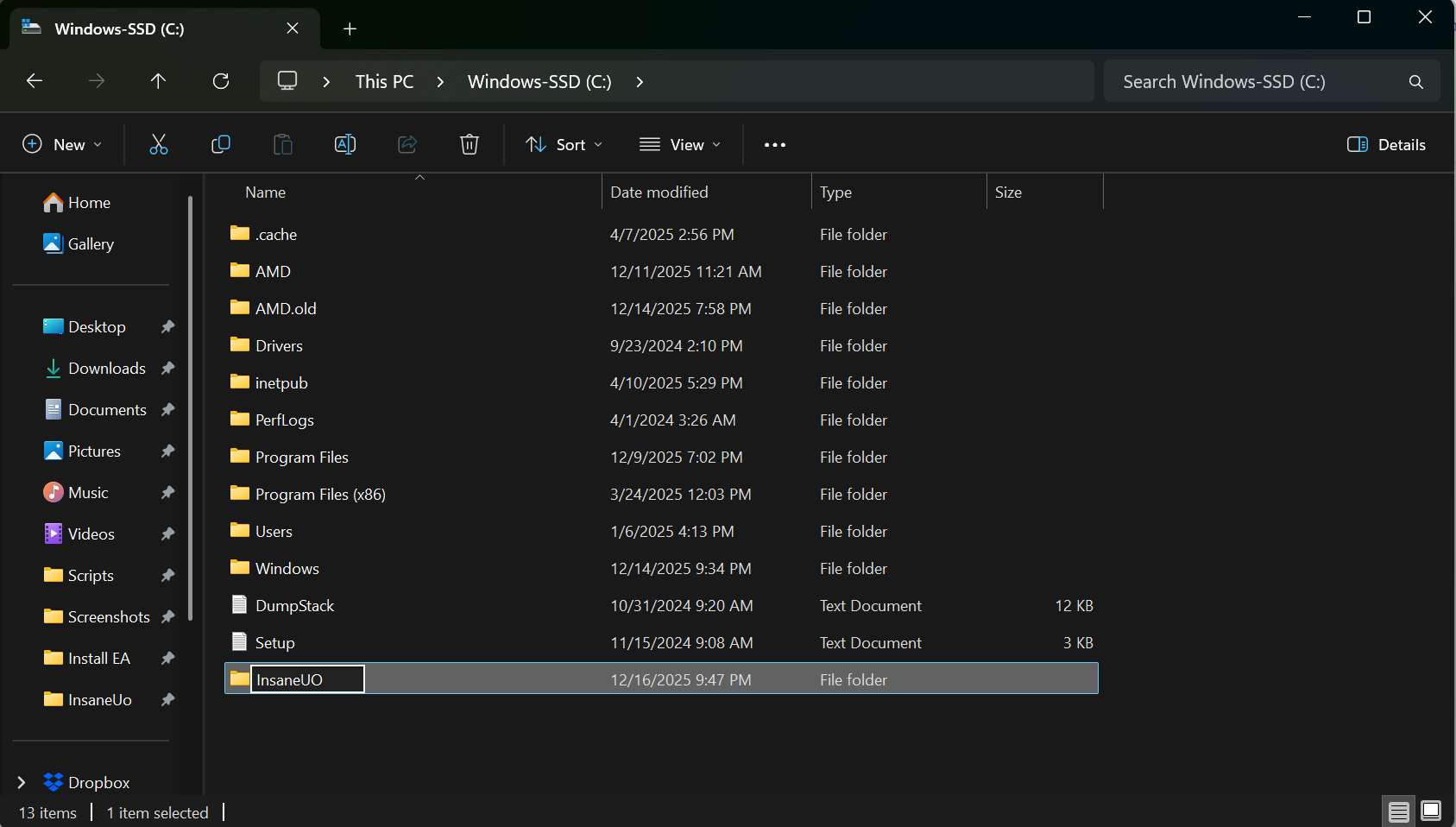
- Navigate to the location you want to create a new folder. For this guide, we will use the location
- Download the official client https://downloads.eamythic.com/uo/installers/UOClassicSetup_7_0_24_0.exe
- Open the download to begin installation
- Choose the location you created above,
C:\InsaneUO, for the Install Location and click Install 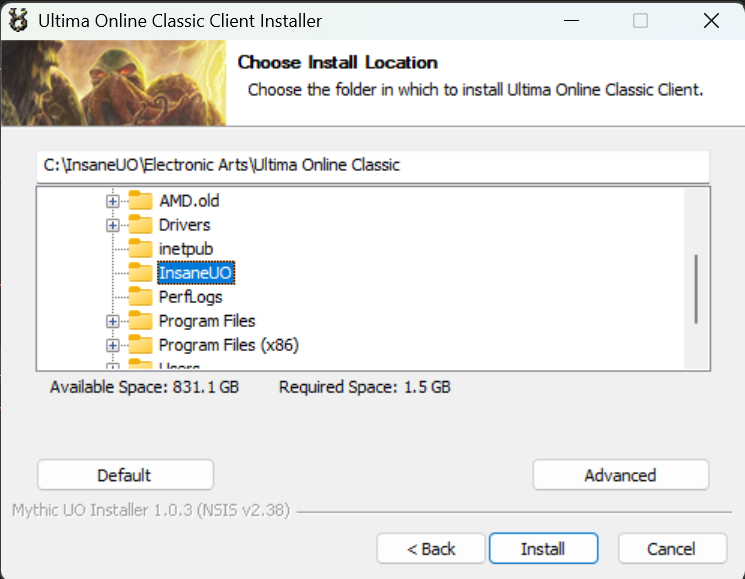
- Choose the location you created above,
- Wait for the install to complete


Patching the Official EA Client
- Launch the "Ultima Online Classic Client" from the icon on your desktop, your start menu, or from
C:\InsaneUO\Electronic Arts\Ultima Online Classic\UO.exe- Wait for the client to patch
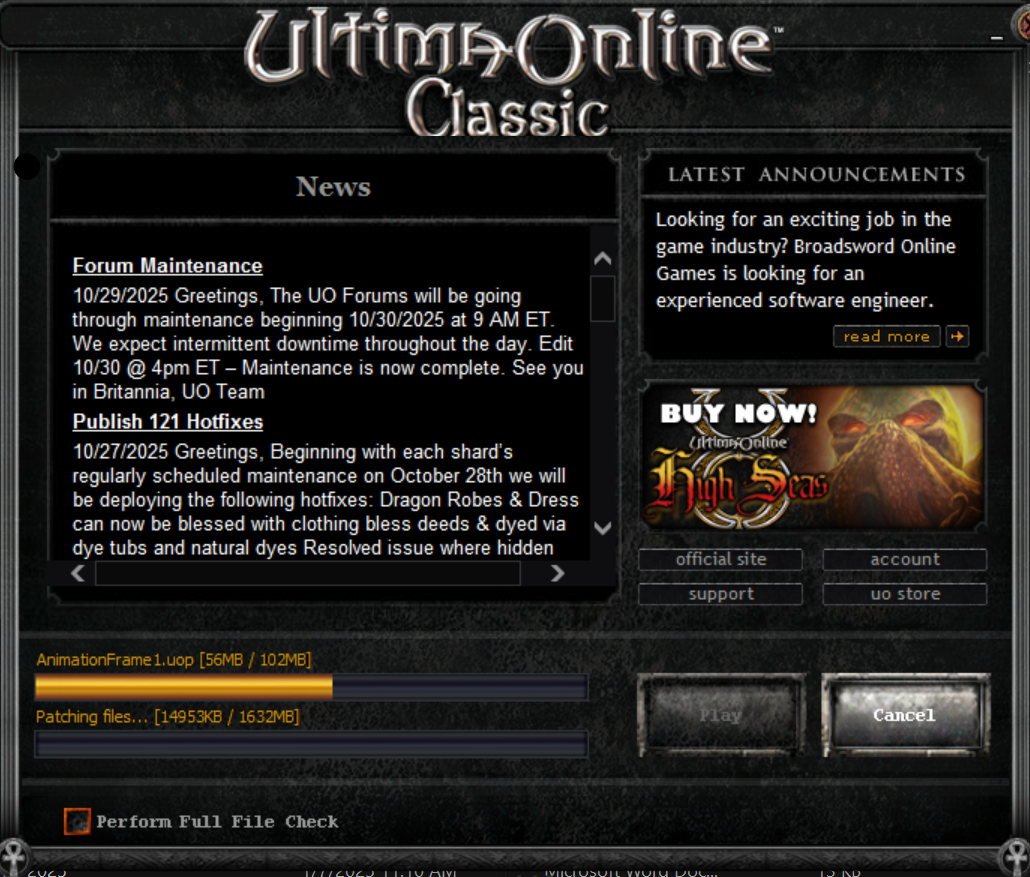
- Once patching is complete, press the "Play" button
- The "Ultima Online Classic Client" should now open.
- At the bottom center is a version number. Write this down or paste it in a text file. You will need it when configuring the launcher. At the time of this writing, the version is
7.0.113.0. 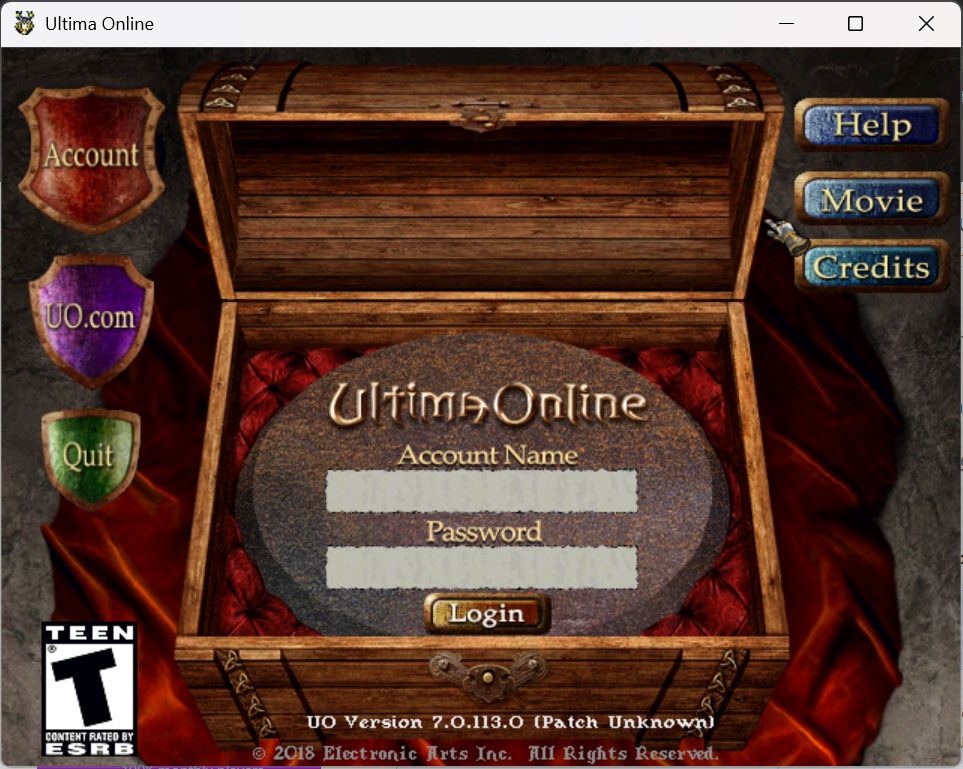
- At the bottom center is a version number. Write this down or paste it in a text file. You will need it when configuring the launcher. At the time of this writing, the version is
- Close the Official Client


Installing the TazUO Launcher and TazUOClient
- Create a folder to contain TazUO
- Navigate to the location that you want to store the TazUO files. For this guide, we will use the location
C:\InsaneUO. - Right click in an empty spot and choose New Folder
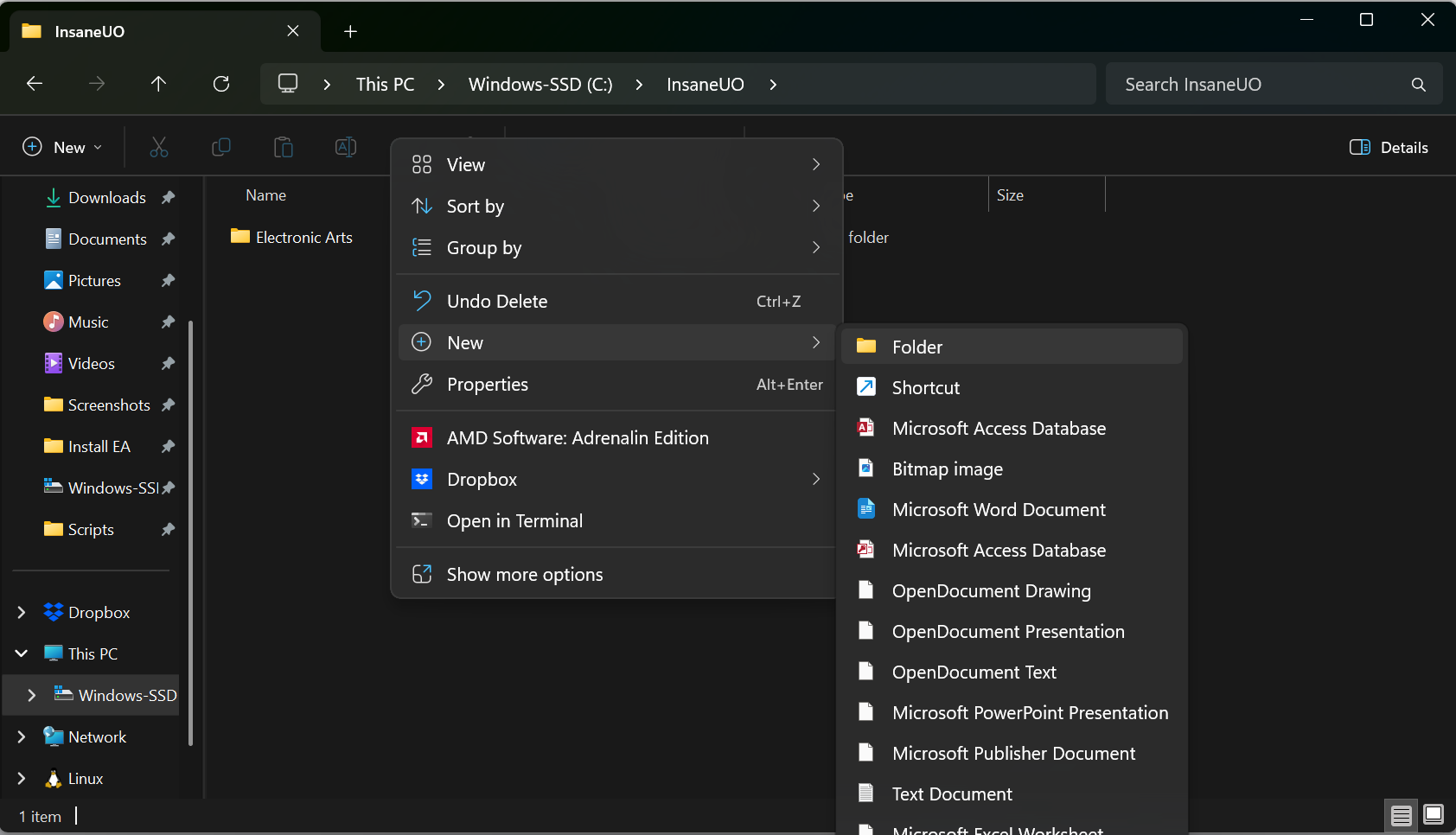
- Name the folder "TazUO"
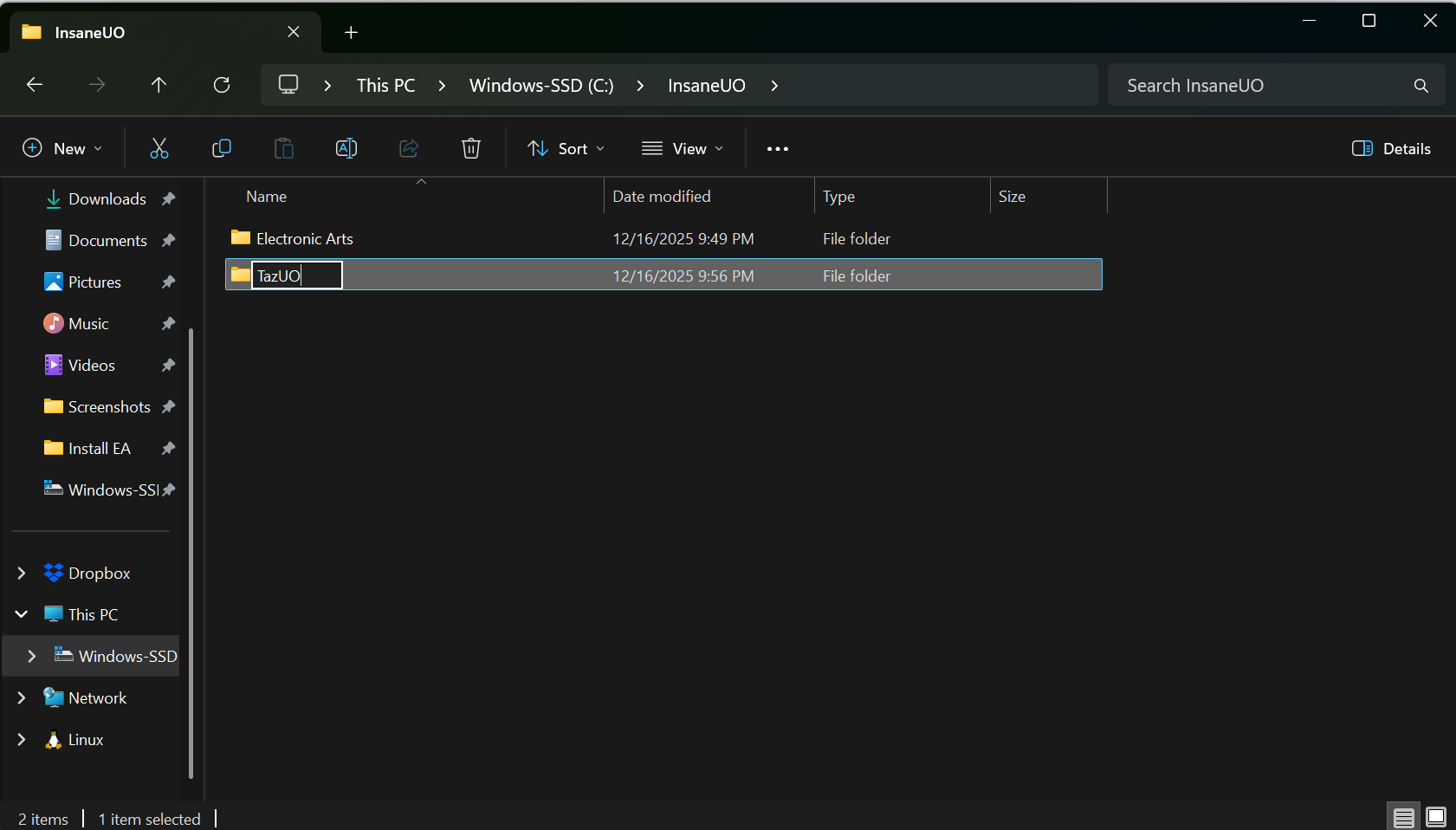
- Navigate to the location that you want to store the TazUO files. For this guide, we will use the location
- Download the TazUO launcher from https://github.com/PlayTazUO/TUO-Launcher/releases/tag/TazUO-Launcher
- This guide is focused on the Windows platform. At the time of this writing, the latest version of the TazUO Launcher is
2.6.7. - Download
TazUO-Launcher.win-x64.zip 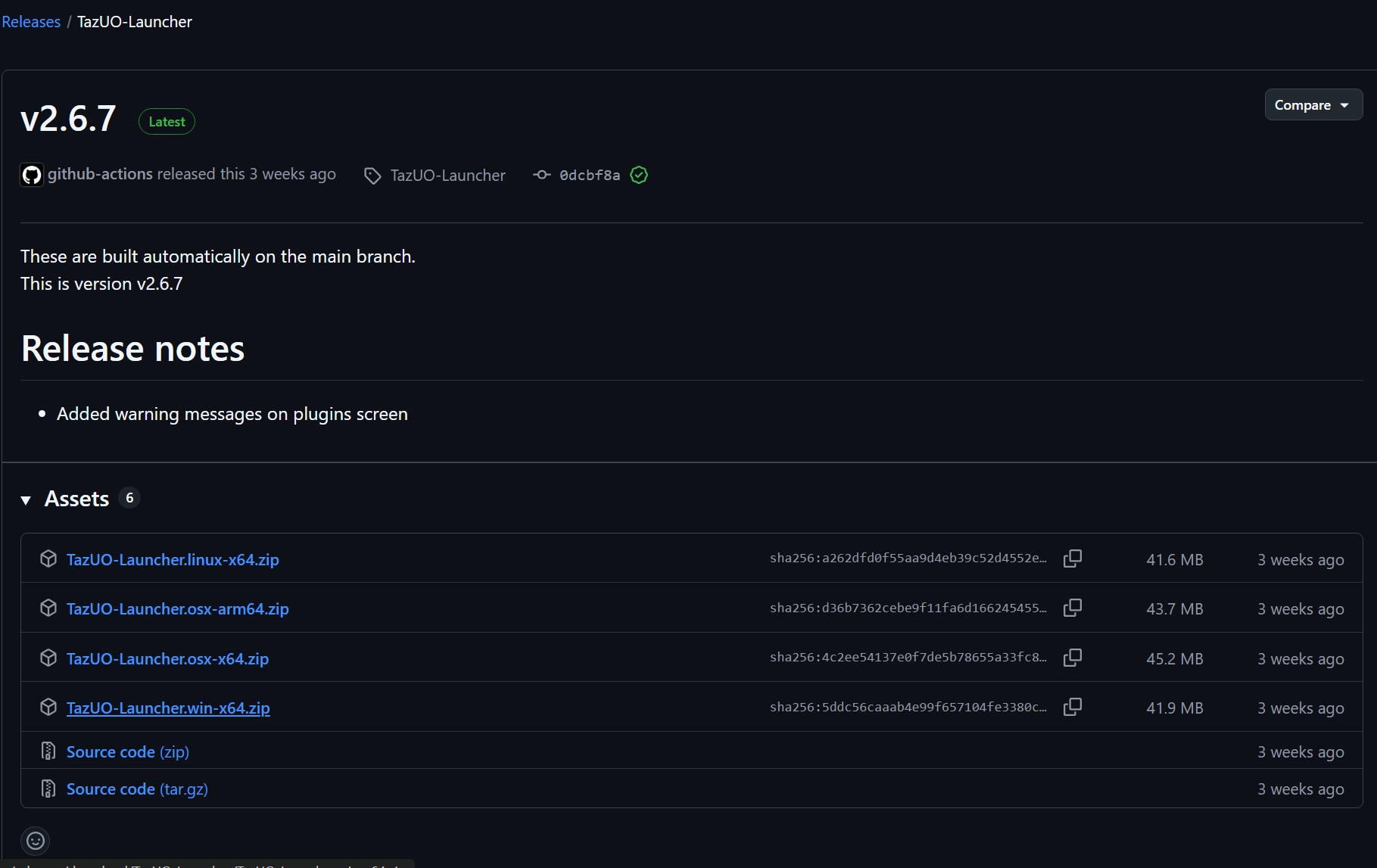
- This guide is focused on the Windows platform. At the time of this writing, the latest version of the TazUO Launcher is
- Extract the files from the zip
- Right click the download and choose extract all
- Set the destination to
C:\InsaneUO\TazUO 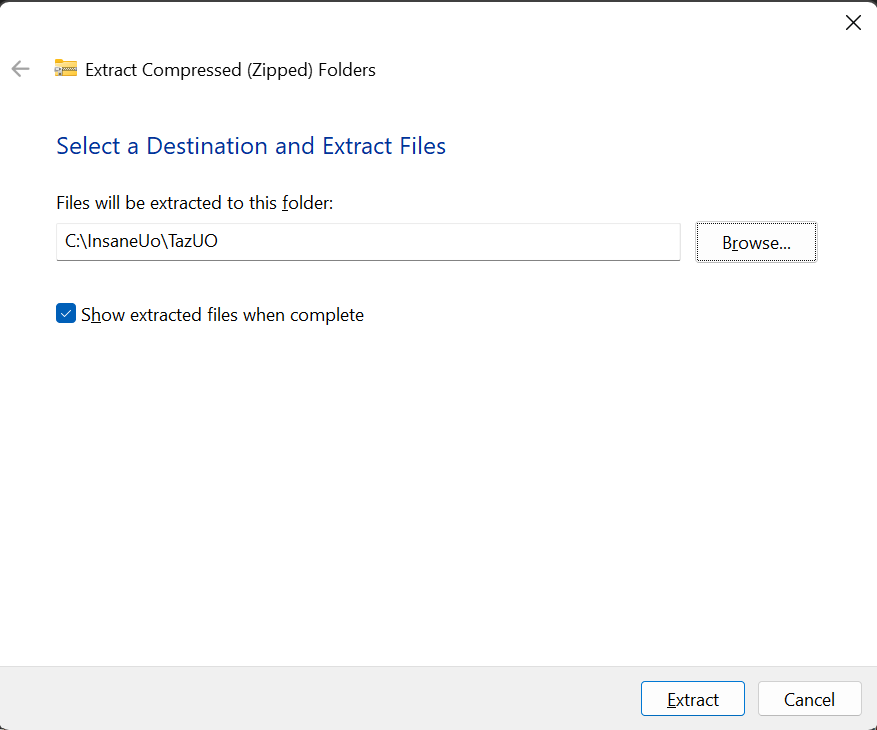
- Unblock the Launcher
- Navigate to
C:\InsaneUO\TazUO - Right click
TazUO Launcherapplication and choose properties 
- In the security section, check the "Unblock" checkbox.

- Navigate to
- Open the TazUO Launcher
- Pick what channel of client you want.
- Legacy will work with assistants like Razor Enhanced and is recommended
- Main receives more updates but is not compatible with assists
- For more info, visit https://tazuo.org/introduction/modern-vs-legacy/
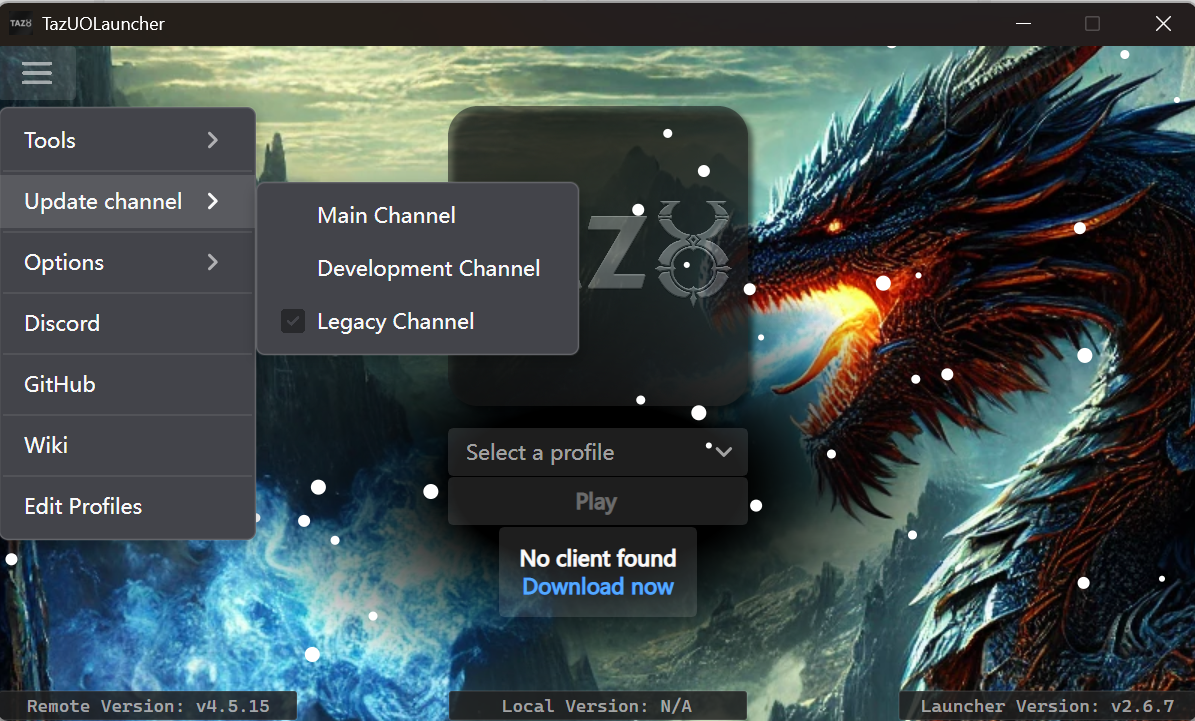
- Click "Download now" and the Taz client will be downloaded


Create a profile in TazUO
- Open the TazUO Launcher
- Click "Select a profile" and then "[ Edit Profiles ]"
- Create a new profile
- Name the profile in a way that makes sense to you. "Account 1" for example
- If you are new to the shard, put in an username and password and the account will be automatically created. You can have up to 3 accounts on Insane UO!
- Using a password longer than 16 characters can cause issues. The EA Client does not support longer than 16 character passwords.
- Use the following for "Connection" section
Server Address: login.insaneuo.com
Port: 2593
- Click "Locate" beside "UO Directory" and choose where you installed the Official EA client. For this guide, the location is
C:\InsaneUO\Electronic Arts\Ultima Online Classic - If the client version does not auto populate, input the client version for the Official EA client. For this guide, the version is
7.0.113.0 
- Click "Locate" beside "UO Directory" and choose where you installed the Official EA client. For this guide, the location is
- Click "Save"
- Click the 'X' to close the window

Installing Razor Enhanced
- Create a folder to contain Razor
- Navigate to the location that you want to store the Razor files. For this guide, we will use the location
C:\InsaneUO. - Right click in an empty spot and choose New Folder
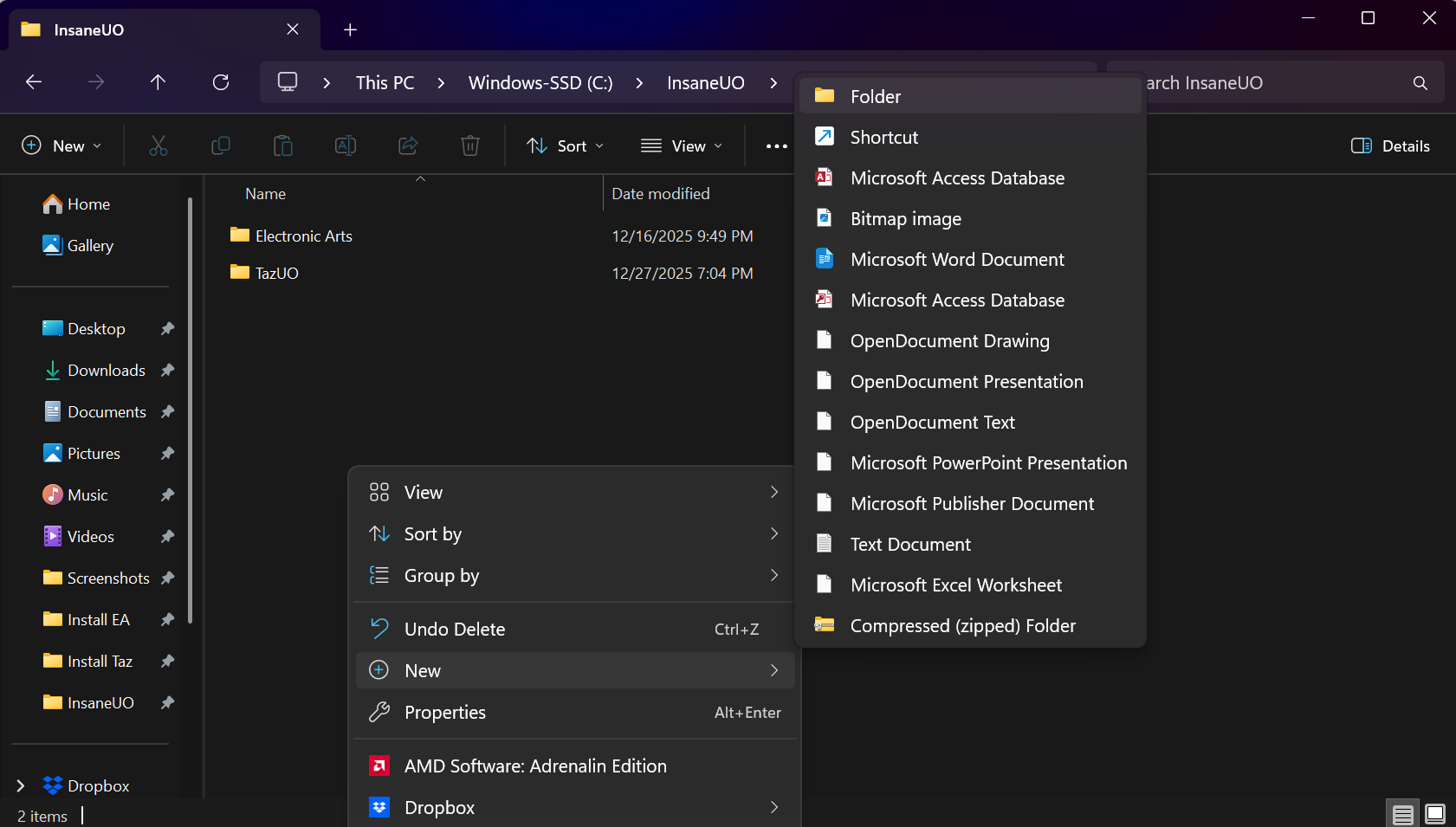
- Name the folder "Razor"
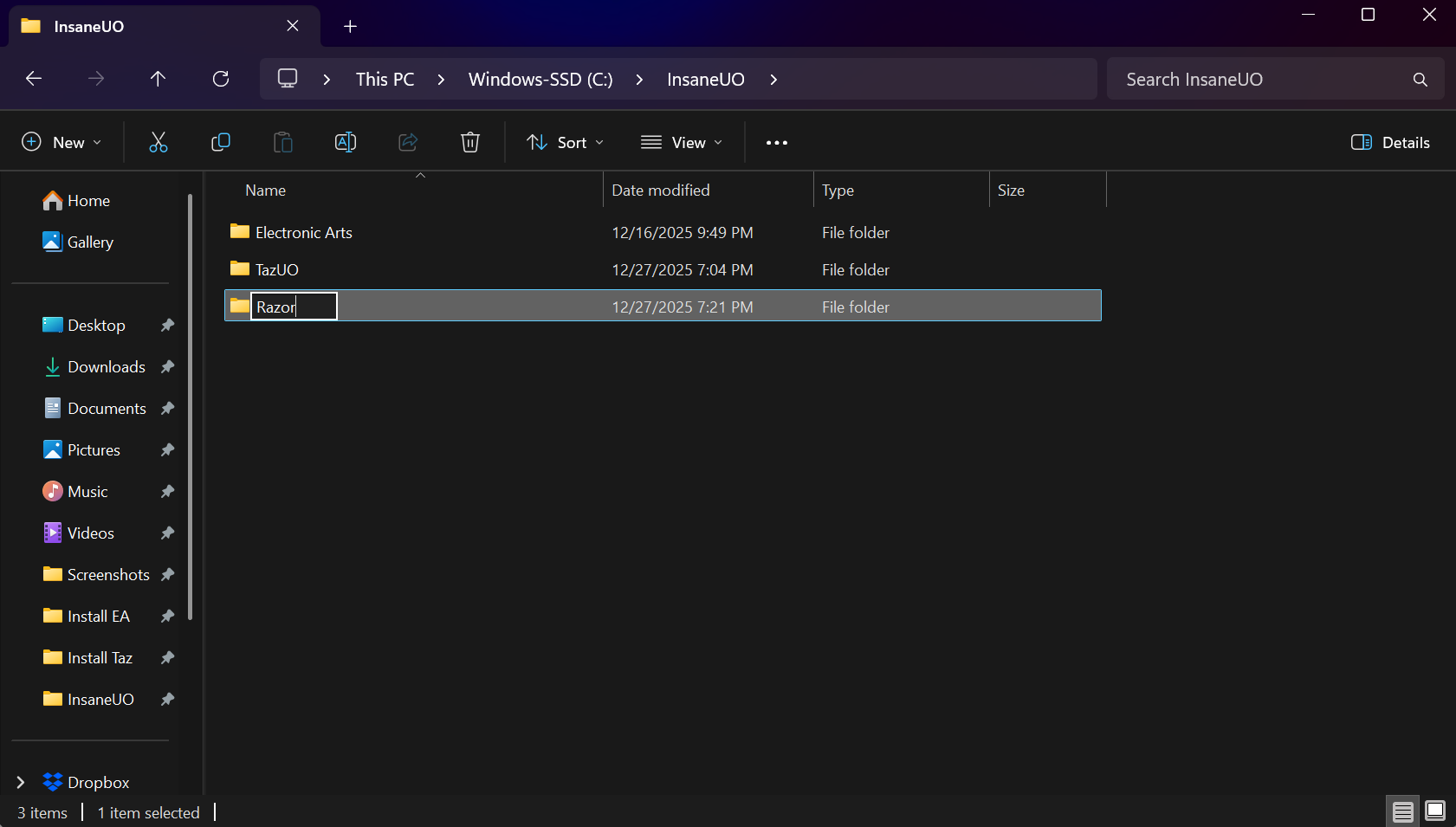
- Navigate to the location that you want to store the Razor files. For this guide, we will use the location
- Download the latest Razor Enhanced from https://razorenhanced.net/
- Extract the files from the zip
- Right click the download and choose extract all
- Set the destination to
C:\InsaneUO\Razor 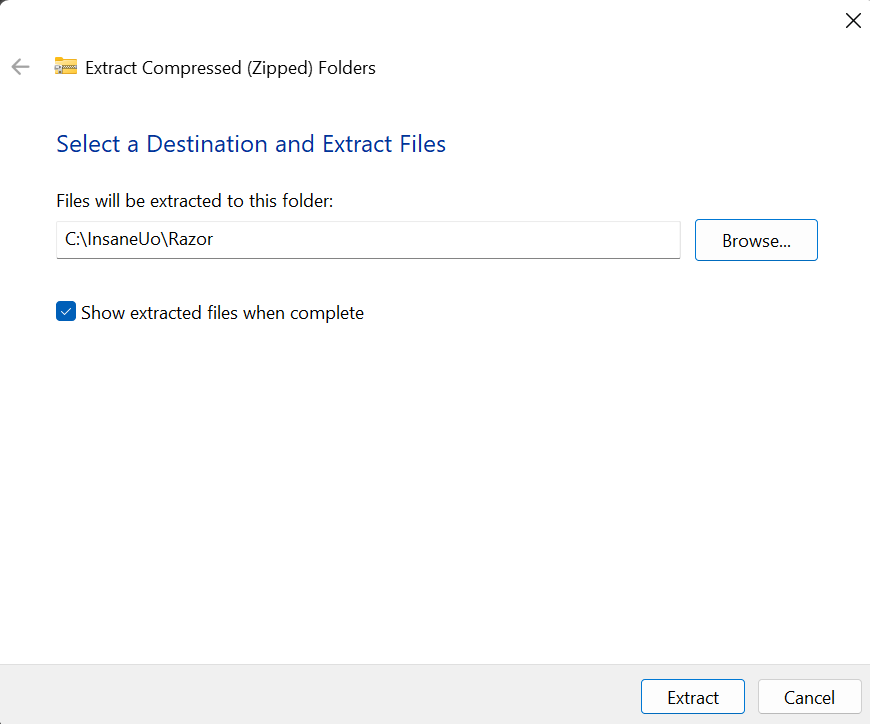


Configuring TazUO to launch Razor
- Open the TazUO Launcher
- Click the profile dropdwon and then "[ Edit Profiles ]"
- Choose the profile you created above and then click on the "Plugins" tab
- Press "Add" and choose where you installed Razor Enhanced. For this guide, the location is
C:\InsaneUO\Razor\RazorEnhanced.exe - Click "Save"
- Click the 'X' to close the window


Play!
- Open the TazUO Launcher
- Pick the profile you want to play and click "Play"
- Be sure to check out other articles to find out more about Insane UO.


